Azure Evolution: Day 14 - How to Install Azure CLI on Ubuntu 🐧

As a DevOps Engineer, I thrive in the cloud and command a vast arsenal of tools and technologies: ☁️ AWS and Azure Cloud: Where the sky is the limit, I ensure applications soar. 🔨 DevOps Toolbelt: Git, GitHub, GitLab – I master them all for smooth development workflows. 🧱 Infrastructure as Code: Terraform and Ansible sculpt infrastructure like a masterpiece. 🐳 Containerization: With Docker, I package applications for effortless deployment. 🚀 Orchestration: Kubernetes conducts my application symphonies. 🌐 Web Servers: Nginx and Apache, my trusted gatekeepers of the web.
Introduction
The Azure Command-Line Interface (CLI) is a powerful tool for managing Azure resources directly from your terminal. If you're using Ubuntu and want to get started with Azure CLI, you're in the right place! This guide will walk you through the steps to install Azure CLI on your Ubuntu system. Let's dive in! 🌊
Step 1: Update Your System 🔄
First things first, keep your system fresh and updated! Open your terminal and run:
sudo apt update -y
Step 2: Install with only one command 📦
The easiest way to install the Azure CLI is through a script. Install them by running:
curl -sL https://aka.ms/InstallAzureCLIDeb | sudo bash
Step 3: Verify the Installation ✅
Check if Azure CLI is installed correctly by verifying its version:
az version

You should see the version information, confirming a successful installation. Woohoo! 🎉
Step 8: Log In to Azure 🔐
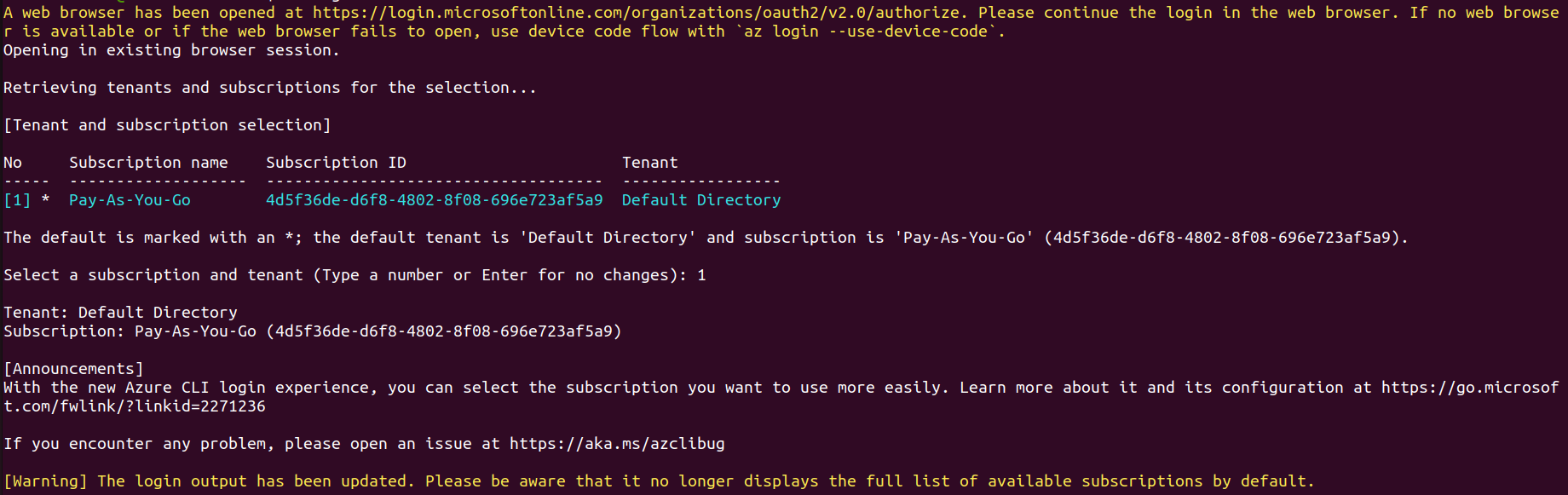
To start using Azure CLI, log in to your Azure account. Simply run:
az login
This will open a web browser asking for your Azure account credentials. Once logged in, you can manage your Azure resources directly from the terminal! 💻
Troubleshooting 🛠️
If you run into any issues during the installation, here are some tips:
Check Internet Connection: Ensure you have a stable internet connection.
Update System: Run
sudo apt updateandsudo apt upgradeto keep your system up to date.Reinstall: If problems persist, try removing Azure CLI (
sudo apt remove azure-cli) and reinstalling it.
Conclusion 🎯
Installing Azure CLI on Ubuntu is a breeze with these steps. Now you can manage your Azure resources efficiently and automate workflows from your terminal. Azure CLI is your go-to tool for deploying applications, managing resources, or monitoring your infrastructure. Ready to streamline your DevOps tasks? 🚀